Guides / Exporting your videos
Exporting your videos
Choose which versions to export, set the size and quality, and save the files to your PC. Copying them to your own cloud folder is coming soon.
Export in one go
- Press ExportIt's at the top right of the editor. Ctrl+E does the same.
- Tick every version you wantEach one is saved as its own video file. Choose 16:9 or 9:16 for each, and rename the file if you like.
- Choose the qualityPick the resolution, frame rate, quality and format. The window shows roughly how big the file will be.
- Choose where to saveThe default is a Highlix folder inside your Videos folder. Press Browse… to change it, and tick Use this folder next time too to keep it.
- Even out the loudness (optional)This matches the level YouTube and TikTok use, so your video isn't much quieter or louder than others.
- Press Export
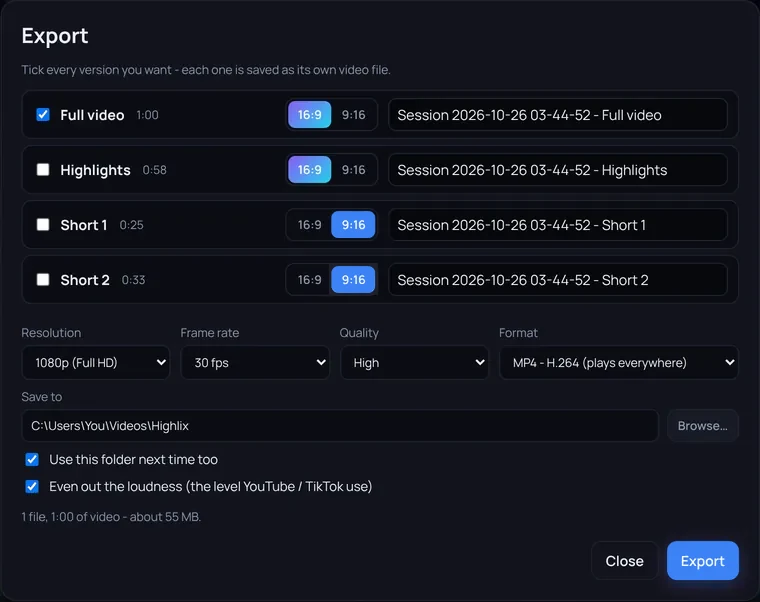
Export sizes: landscape and vertical
You can export any video, including your own imported videos, in the shape you need.
| Choose | Shape | Good for |
|---|---|---|
| 16:9 | Landscape | Standard widescreen video, for example for YouTube |
| 9:16 | Vertical | Shorts, Reels and TikTok |
Each version can be exported in either shape, and you can tick several at once. The free plan exports up to 1080p at 30 frames a second; Pro goes up to 1440p or native resolution, at 60.
Where your videos are saved
Your videos are saved on your PC, in the folder you chose above.
Coming soon: optionally, Highlix can also copy finished videos into your own OneDrive, Google Drive or Dropbox folder. There's no sign-in, we never see your files, and we don't charge for storage because we don't run a cloud. This isn't built yet, so for now Highlix only saves to your PC.
Good to know
- Highlix uses your graphics card's encoder when it can, which is much faster than the CPU.
- Exports use your full-quality recording, with your cuts, captions, looks, speed, overlays and sound mix applied.
- If your music needs a credit, a
credits.txtis saved beside the video and the credit is shown for you to copy into your description. - Exports pause while you're recording and carry on after you press Stop.
- Highlix saves the files to your PC. You post or share them yourself.
Making Shorts, Reels or TikToks? Export them as 9:16 and put the credit line from the credits file in the description.