Guides / How the auto-edit works
How the auto-edit works
What Highlix does when you press Stop: a full video with dead time cut, a highlights reel and Shorts, all on your own PC.
What happens on Stop
- The Editor opensYou'll see the auto-edit's progress, then the session opens already edited. Press Cancel if you want to stop it.
- Highlix looks at the recordingIt checks how much the picture changes and how bright it is, and listens to the game, mic and voice-chat sounds, each compared with its own usual level. It runs in the background at low priority, one session at a time, and waits while a new session is recording.
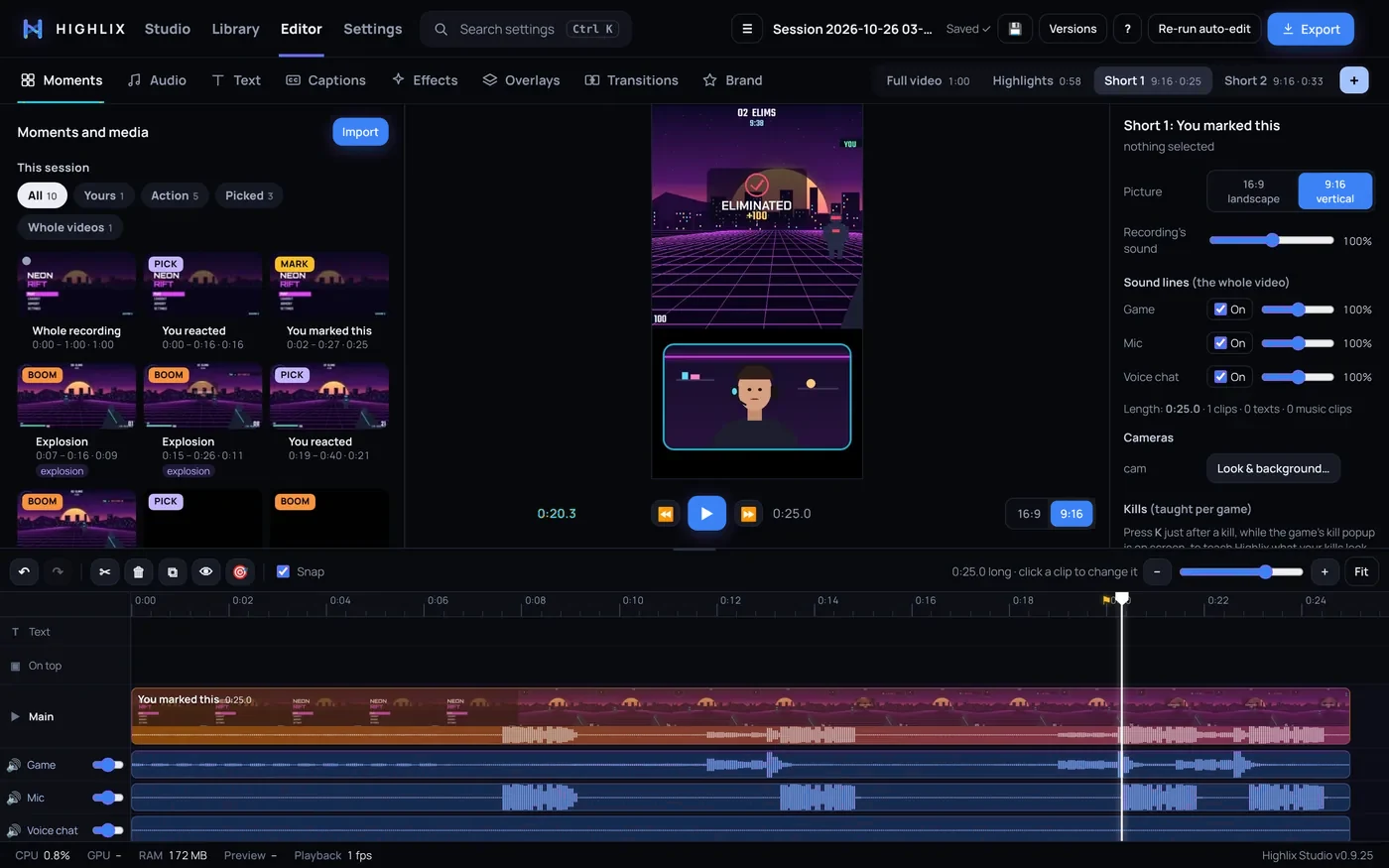
- It builds three kinds of videoEach one appears as a tab in the editor.
The three versions
Full video
The whole session with dead time switched off: loading and black screens, and menus, pauses or AFK where the picture is still and nobody is talking. Your marked moments are their own sections.
Highlights
All your marks and clips plus the best automatic moments, in time order. Usually a few minutes long — longer for a long session with lots of action (a 3½-hour Battlefield 6 session made an 8-minute reel).
Shorts
The top three moments (yours first), 15 to 60 seconds each, in 9:16 vertical.
Automatic moments come from sound recognition on your PC (laughs and reactions on your mic and chat, gunfights and explosions in the game sound), loud moments, and kills once you've taught Highlix a game's kill popup.
Nothing is cut for good
- The edit is only a list of sections played in order. Your original recordings are never changed.
- Click a section to watch it, press Keep / Cut (or Delete) to switch it in or out, and drag it to move it.
- If Highlix can't read the picture, it cuts nothing. If more than 75% of a recording looks dead, it marks the cuts but leaves them in, with a note.
- Your marks and clips keep exactly their own start and end. Anything automatic that overlaps them is trimmed or dropped.
Teaching Highlix your game's kills
In the editor, press K just after two kills in the same game, while the game's kill popup is on screen. Highlix learns what that popup looks like, keeps it for next time, and from then on finds and counts kills by itself. Every kill it finds is listed with a close-up: a tick or a cross fixes the count at once and teaches it for next time. Kills within five seconds become Double, Triple, Quad and “N kills!” callouts. Find all kills works on any video.
Re-run the auto-edit
Press Re-run auto-edit in the editor, or Auto-edit on a session in the Library, to start again from scratch. Your changes to that session are replaced, but your own imported videos and library stay.
You can also bring in your own videos and choose Auto-edit my videos to get the same full video, highlights and Shorts from files that weren't recorded by Highlix.
The smooth-editing copy
To make the editor feel snappy, Highlix plays a preview copy of your recording. Before each session it sets a keyframe every second, so most recordings need no conversion at all and cuts and jumps are instant.
- If a recording needs a smoother copy, Highlix makes it afterwards in the background. The editor header says “Making a smooth-editing copy” and switches to it when it's done.
- The copy waits while you're playing the video, and pauses while you're recording.
- Exports always use the full-quality recording, not the preview copy.
- Preview copies use disk space, roughly as much again as the recording. See disk space.
Next: Using the editor.